
Every Cycluno run produces a report. This guide walks through the metrics behind it, what the dashboards look like, who should read which part, and how to get the numbers out of the app and into your other tools.
1. The metrics, explained
- Pass rate — the share of executed tests that passed. The report rates the whole run as a Quality Score: 80% or more is Excellent, 60–79% Good, 40–59% Fair, below that Poor.
- Fail rate — the share that failed. Each failure carries its step log, a recording and a drafted bug, so the number always has evidence behind it.
- Pending — tests that were not run or were blocked (for example, waiting for a browser). High pending usually means the run was interrupted, not that quality is fine.
- Execution coverage — executed tests as a share of all designed test cases. It answers "did we actually test what we wrote?" rather than "did it pass?"
- Average execution time — how long a test takes on average. Growing times are often the first sign of a performance regression.
- Flaky tests — Cycluno doesn't tag tests as flaky automatically, but every run is saved as its own entry linked to the previous one. Compare two runs over unchanged code: a test that passed last time and fails now, with no change to the app, is your flaky candidate. Re-run it alone to confirm.
- Coverage gaps — features with no test cases at all. The plan and report highlight them so gaps are a decision, not an accident.
2. Sample dashboards
The Report tab opens with the quality score, an execution donut and coverage at the top:
Quality Score
EXCELLENT
pass rate ≥ 80%
Execution coverage
92%
23 of 25 cases executed
Below that, a searchable list of every test with its status, and the three most persistent failures surfaced on the side:
| Test | Status | Duration | Last run |
|---|---|---|---|
| Sign in with valid credentials | Passed | 3.4s | Today |
| Checkout rejects empty cart | Passed | 5.1s | Today |
| Password reset email arrives | Failed | 31.0s | Today |
| Profile picture upload | Blocked | — | Today |
A full report PDF is generated on demand with an Executive Summary at the top. Here is what a real report looks like in the app:
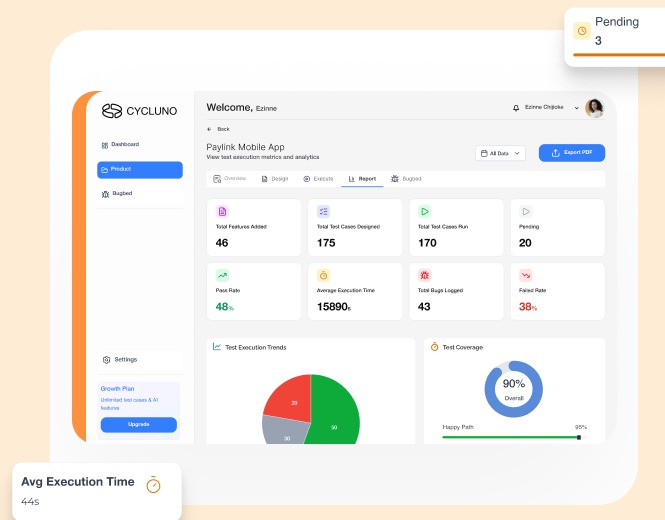
3. Tailor the report to your audience
The same run answers different questions. Point each stakeholder at their slice:
| Audience | What they read | Decision they make | Where to look |
|---|---|---|---|
| QA / testers | Coverage, failed tests, step logs and recordings | Fix cases, re-run failures, close coverage gaps | Test Execution Summary and Top Failing Tests |
| Product managers | Which features are safe to ship and which carry risk | Prioritise bug fixes and scope decisions | Feature coverage and open bugs by feature |
| Executives | One quality score and the trend across runs | Ship / hold decision with confidence | Executive Summary |
| Developers | Failed steps, evidence and drafted bugs | Reproduce and fix | Run page: step logs, recordings, bug links |
For a stakeholder meeting, lead with the Executive Summary and the quality trend across runs, then only open step logs if someone asks. For a triage session, skip the summary and start from the failure list.
4. Export formats and automation hooks
- Report PDF — the full report with executive summary, execution table and defects, generated from the Report tab for sharing outside Cycluno.
- Test design exports — scenarios as CSV, suites as CSV and test cases as Excel, or everything as one PDF, from the design documents dialog.
- Run recordings — every executed test has a video you can play, scrub and download as a WebM file to attach to a bug or a review.
- Bug payloads — failed tests draft a bug with the step log, screenshot and recording attached; bugs can be pushed to Jira through your own per-user integration.
- Team channels — your own Slack or Microsoft Teams connection receives the run outcome, so the report comes to the team instead of the team coming to the report.
- Automatic re-runs — a private webhook starts a fresh run on every GitHub push or hosting deploy, so the newest report always reflects the latest code.